Photo Background Change

A background change should take a minute, not an afternoon. Upload a photo, let the cutout find the subject, then set it against a color you choose: warm sand, cool gray, ink, or a brand tone you upload as a tile. The edit itself finishes in seconds; the slow part is choosing the color. Free to start, no account needed, nothing to install.

Start with your subject photo.

Drop a photo or a whole batch. We will cut out the subject automatically.

JPG, PNG or WebP. Up to 20 photos, 25 MB each.
  1. 1Upload photos
  2. 2Background
  3. 3Download

The tools

A little control makes all the difference.

Subject and background stay on separate layers, so one can move without disturbing the other. Reposition the subject, tune the light on either layer, and leave the original file untouched. The controls that make a background change look deliberate are all here, and none of them sit behind a paywall.

Full-resolution exportLayer-by-layer editingCustom size

Color

01

Change background color

Half of every background change is really a color decision. A portrait shot in a cluttered kitchen reads as a studio portrait the moment the wall behind it turns warm gray. A product photo on a scratched table stops looking like a snapshot once the surface under it becomes sand or stone.

The studio color library exists for that job: twelve flat tones, from soft white and paper through warm sand, stone and cool gray, down to graphite, ink, blush, sage, sky, navy and clay. Flat matters. A photograph brings its own light direction and its own white balance, and those rarely agree with the light on your subject — which is why a photo dropped behind a cutout so often looks pasted on. A flat tone has no direction to disagree with, so it takes the light the photo already has. Pick one, then open Light & color and nudge its warmth or hue until the two layers sit together.

If you need an exact brand color, export a flat tile from any design tool, upload it as the background, and the background change is finished in one step. The subject is never reprocessed, so you can swap that color a dozen times and the cutout stays as sharp as the first pass.

  • Studio color library
  • Per-layer light and color
  • Upload any flat color

Online

02

Change background online

Nothing to install. A background change here runs in the tab you already have open: the cutout is a single request to a cloud model, and everything after it — position, crop, color, export — happens on your own machine, which is why the background changer feels instant even on a laptop with no graphics card.

It also travels. Start a background change on a laptop, finish it on a phone at the venue: same page, same file, and the layout folds down to fit instead of hiding half the controls.

Because the compositing runs locally, what the tab shows at 100% is what the file contains — no second compression on a server, no resize that softens the hair you just cut out. That is the difference between a background change that survives a zoom and one that only looks right in the preview.

  • No install, no plugin
  • Any modern browser
  • Editing stays on your device

Free

03

Free background change

The editing half of a background change is free, and stays free: move, resize, rotate, flip, crop, change the aspect ratio, adjust light and color, then download at full resolution. No watermark, no export cap, no upgrade button waiting at the end of the flow.

The AI cutout and the AI-generated scenes are the only things we charge for, because they are the only things that cost us per image. Credits are priced per image, published on the pricing page rather than saved for a sales call, and a run that fails returns them on its own.

You do not need an account to try any of it. Drop in a photo, run the background change, download the result; sign in only when you want the AI scenes you make kept in one place.

  • No watermark
  • No export limits
  • Credits only for AI scenes

Real results

See the Difference

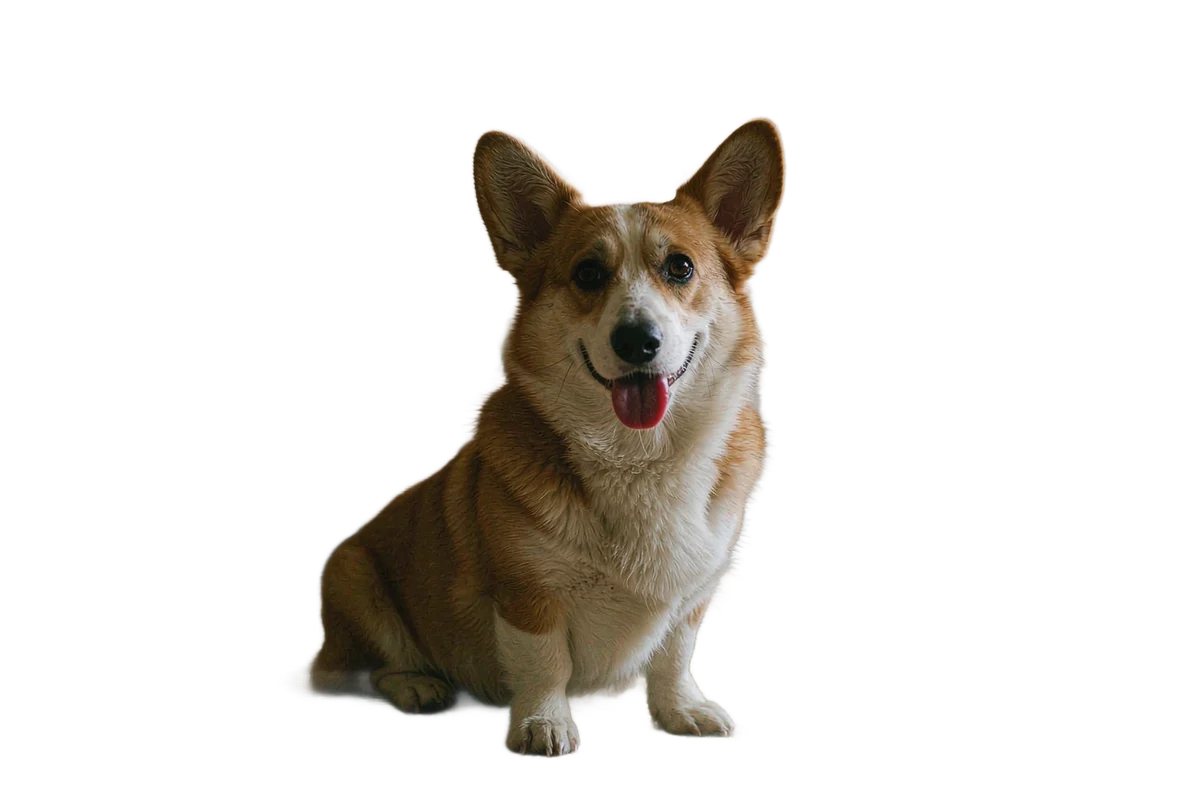
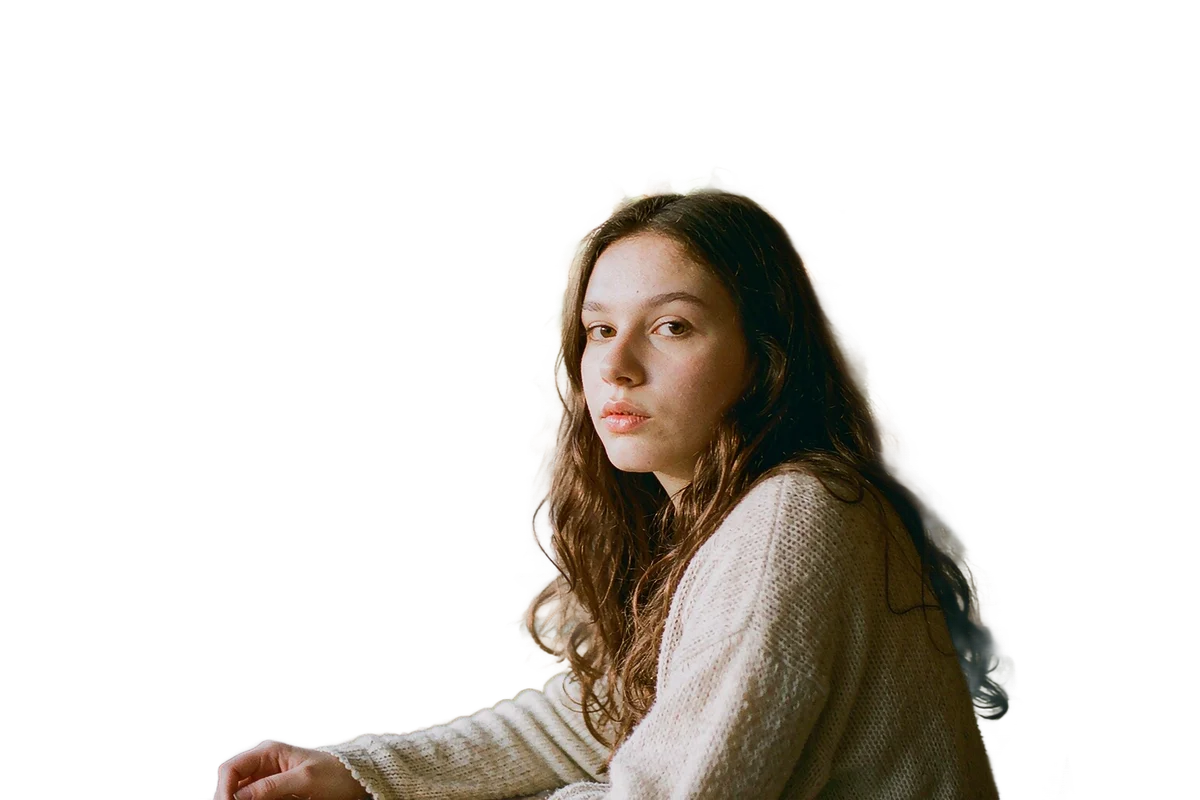
Three results, shot on a phone and finished in the studio. Each panel is one background change: same subject, same light, a different color behind it. Drag the handle to compare.

Remove Background

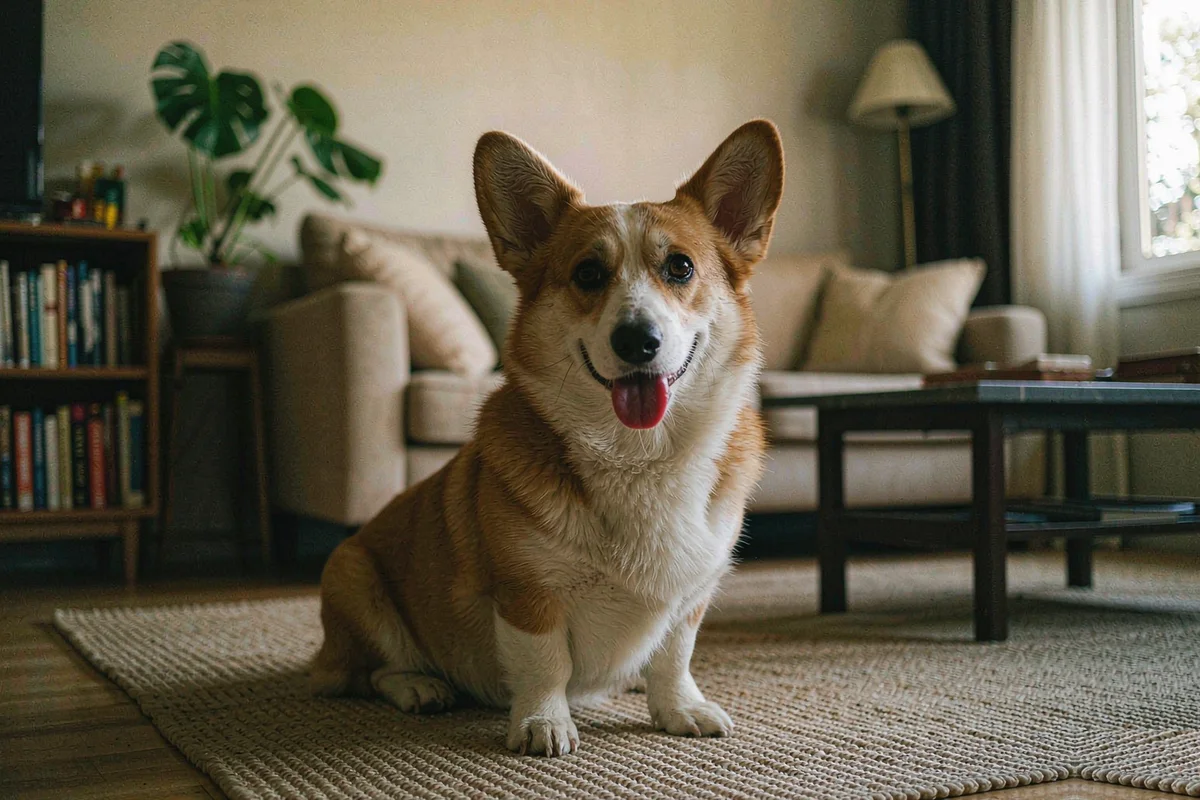
Cut the old background away and keep the hard parts: soft fur, loose hair, the thin gap between a handle and a lid.

Corgi sitting on a rug in a bright living room
BeforeAfter

Change Portrait Background

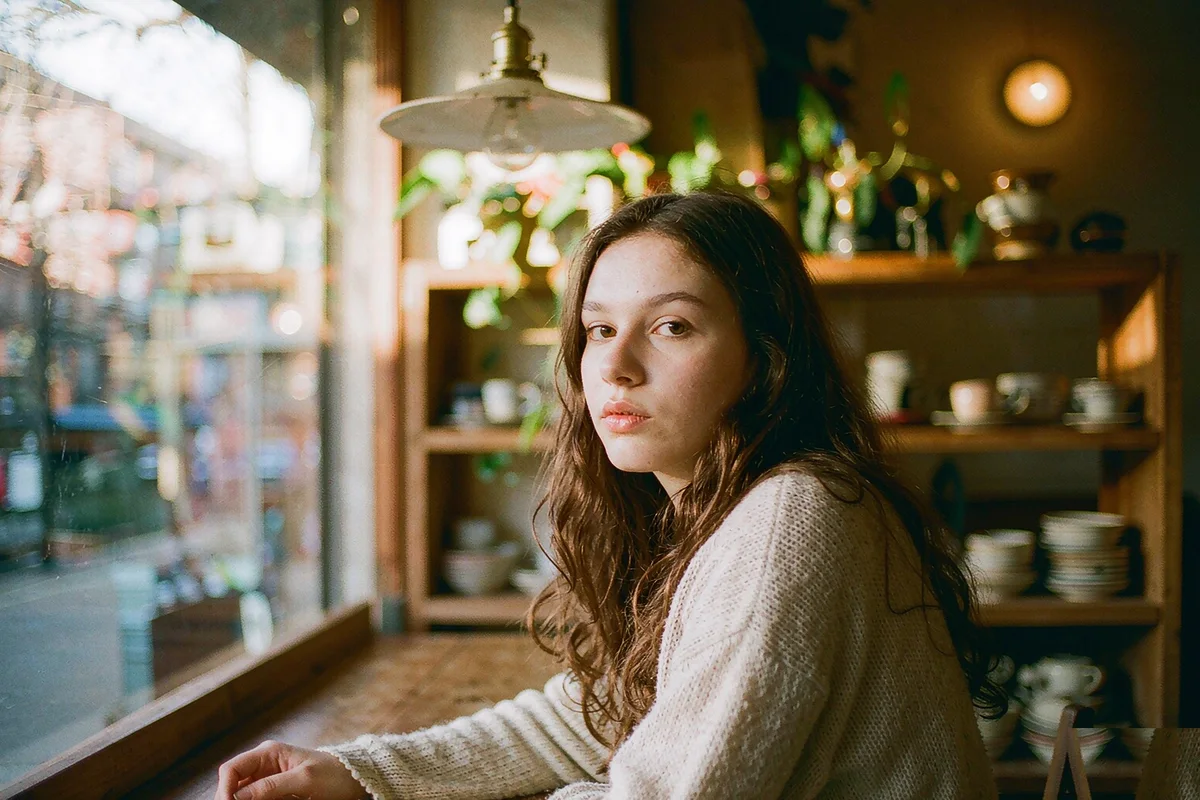
A background change that keeps the window light on the face and rewrites only what sits behind it.

Woman in a cream sweater at a cafe table, window light on her face
BeforeAfter

Change Product Background

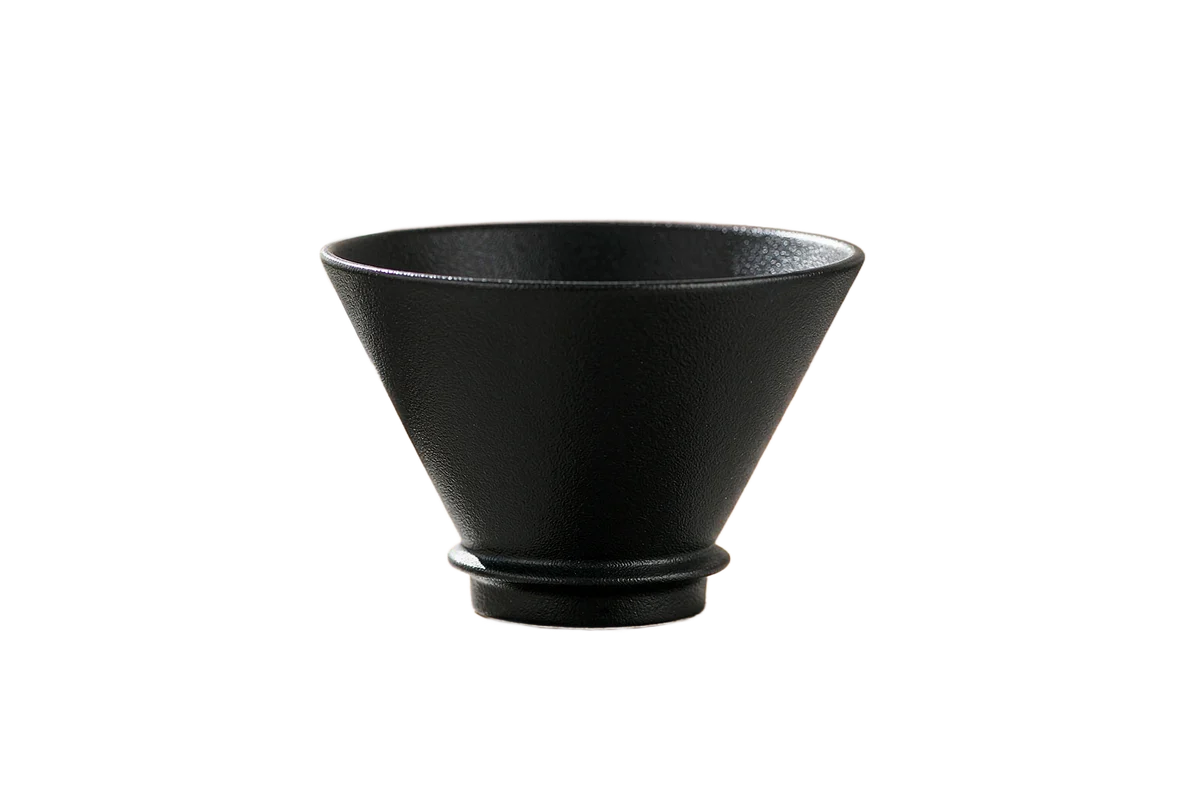
Turn a kitchen-table snapshot into a catalogue image by changing one thing — the surface under the product.

Black pour-over coffee dripper with a wooden base
BeforeAfter

How a background change works

  1. 01

    Add your subject

    Upload a portrait, a product or a pet. The cutout runs automatically and returns a transparent PNG; most photos take a few seconds.

  2. 02

    Choose the background

    Pick one of the studio colors, or upload a background photograph of your own. Move, scale and crop until the subject sits naturally.

  3. 03

    Download the photograph

    Export at full resolution as PNG, JPG or WebP, or send a whole batch as one ZIP. The background change is finished the moment you have the file.

Before you get started

Can I use my own background image?

Yes. Upload a JPG, PNG or WebP background, or start from one of the twelve studio colors. Swapping it later costs nothing because the cutout is kept separate, so a background change never forces you to reprocess the subject.

Are the editing tools free?

Yes. Moving, resizing, rotation, flips, opacity, crop, aspect ratios and color adjustments are all free, and downloads carry no watermark. Credits are only used by AI cutouts and AI-generated scenes.

Can I change the background to a solid color?

Yes. The color cards in the background panel are flat tones, so choosing one is a single click: no image is downloaded and the subject is never touched. For an exact brand value, upload a tile of that color and the background change is finished in one step.

Will editing reduce image quality?

The editor keeps your source file and renders the export at the pixel size you choose, so a background change does not resample the subject over and over. PNG avoids lossy compression; enlarging a small image still softens fine detail.

How does batch editing work?

Add up to 20 photos, choose one shared background, and apply a layout to all of them, so a whole set gets the same background change in one pass. Open any thumbnail to adjust that one frame, then download the finished images together as a ZIP.

Does the tool generate a new background?

This editor pairs your original subject with a color or an image you supply. The separate AI service can generate a photographic backdrop from a prompt when a flat tone is not enough, and neither path redraws your subject.

Where are my photos processed?

Only the cutout leaves your device: it goes to Replicate, a cloud model. Positioning, color, cropping and export happen in the browser. A transparent PNG can skip the cutout step and stay local entirely.

Do I need an account for a background change?

Not to make one. Upload, edit and download without signing in. An account is only useful for keeping AI-generated scenes and their credits in one place.

What kind of photo works best?

A sharp, evenly lit photo with a clearly visible subject. Shoot portraits facing the camera, products on a plain surface with the label forward, pets sitting still with the full head in frame. A clean outline matters more than megapixels — a background change lives or dies on the edge.

How long does a background change take?

The cutout usually comes back in a few seconds and the editing itself is instant, because it runs locally. One background change is about a minute of work; twenty take longer only because you check every frame.

Simple pricing

Need an AI-generated setting?

The browser editor and its full-resolution downloads are free, including every background change you make by hand. Credits apply to the separate AI service, where a prompt builds a setting the color cards cannot give you.

Starter

$9/ month

60 credits every month

  • About 20 Standard images
  • Up to 7 Pro images
  • Commercial use included
See plan

Creator

Most chosen

$29/ month

240 credits every month

  • About 80 Standard images
  • Up to 30 Pro images
  • Commercial use included
See plan

Studio

$79/ month

800 credits every month

  • About 266 Standard images
  • Up to 100 Pro images
  • Commercial use included
See plan

AI plans are billed monthly. Failed AI runs return their credits automatically.

Ready when you are

One photograph is enough to start.

Open the studio

Free editing. No account needed to try it.

Change a background